Claude Desktop MCP: How to Add Servers (Step-by-Step Guide) - Flywheel Studio
Claude Code MCP
Claude Code MCP

Claude Desktop MCP: How to Add Servers (Step-by-Step Guide)
Claude Desktop MCP: How to Add Servers (Step-by-Step Guide)

By

Rodrigo Martinez

Published on:

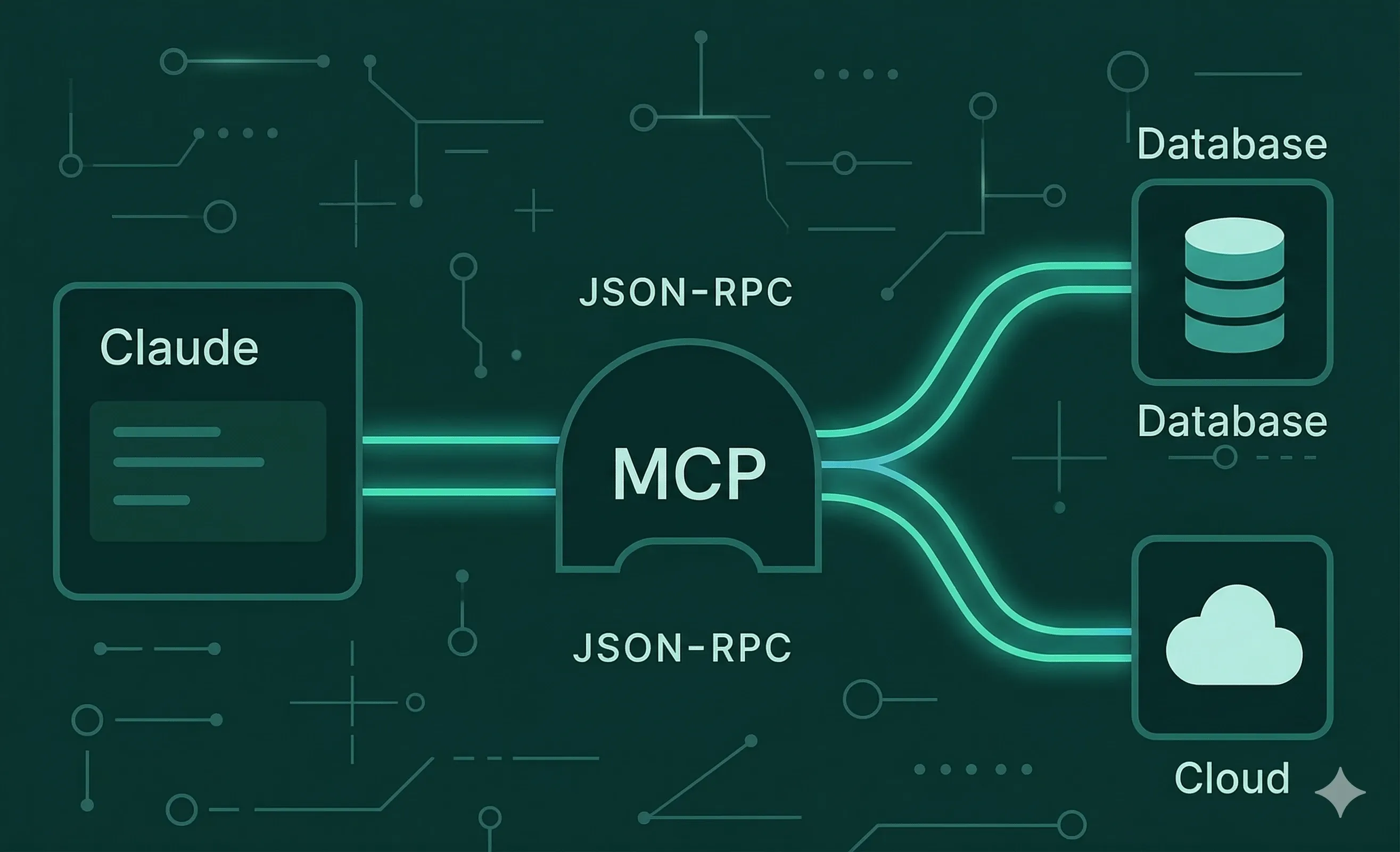
If you’re exploring how to extend the capabilities of Claude Desktop, understanding Claude Desktop MCP and how to add servers is essential. MCP (Model Context Protocol) allows developers and advanced users to connect Claude with external tools, APIs, and data sources, effectively turning it into a more powerful, context-aware assistant. As more teams adopt AI workflows, knowing how to configure MCP servers has become a key skill.

One of the most common questions is how to add servers in Claude Desktop MCP and manage those connections efficiently. Whether you’re integrating internal tools, connecting to APIs, or enabling custom workflows, MCP servers act as the bridge between Claude and your external systems. This makes Claude Desktop not just a chat interface, but a flexible platform for automation and productivity.

In this guide, we’ll walk through how to add MCP servers in Claude Desktop step by step, explain how the configuration works, and share best practices for managing multiple servers. If you’re building AI-powered workflows or exploring advanced use cases, this setup is a foundational step.

What Is MCP in Claude Desktop?

MCP (Model Context Protocol) is a system that allows Claude to interact with external services through defined endpoints. Instead of being limited to static prompts, Claude can access dynamic data, trigger actions, and retrieve structured information from connected servers.

Think of MCP as a way to give Claude “tools.” These tools can include databases, APIs, internal dashboards, or even custom-built services. By adding MCP servers, you’re effectively expanding what Claude can see and do.

Why Add Servers to Claude Desktop?

Adding servers unlocks a new level of functionality. Instead of relying only on user input, Claude can pull real-time data, execute workflows, and provide more accurate, context-aware responses.

For example, you can:

  • Connect Claude to a database to retrieve live data

  • Integrate with internal tools for automation

  • Enable API-based workflows

  • Build custom assistants tailored to your business

This transforms Claude Desktop into a powerful operational tool rather than just a conversational interface.

How to Add MCP Servers in Claude Desktop

The exact process may vary slightly depending on your setup, but the general steps are consistent.

1. Open Claude Desktop Configuration

Start by accessing your Claude Desktop settings or configuration file. MCP servers are typically defined in a configuration file (often JSON-based).

2. Define the MCP Server

You’ll need to add a new server entry. This usually includes:

  • Server name

  • Endpoint URL

  • Authentication (if required)

  • Supported tools or capabilities

Example structure:


{
  "mcpServers": [
    {
      "name": "my-server",
      "url": "https://api.myserver.com",
      "auth": {
        "type": "apiKey",
        "key": "YOUR_API_KEY"
      }
    }
  ]
}
{
  "mcpServers": [
    {
      "name": "my-server",
      "url": "https://api.myserver.com",
      "auth": {
        "type": "apiKey",
        "key": "YOUR_API_KEY"
      }
    }
  ]
}
{
  "mcpServers": [
    {
      "name": "my-server",
      "url": "https://api.myserver.com",
      "auth": {
        "type": "apiKey",
        "key": "YOUR_API_KEY"
      }
    }
  ]
}


3. Save and Reload Claude Desktop

Once the server is added, save your configuration and restart Claude Desktop. This ensures the new server is recognized and available.

4. Test the Connection

After setup, test the server by prompting Claude to use it. For example, ask it to retrieve data or perform a task connected to that server.

Best Practices for Managing MCP Servers

As you scale your setup, managing multiple servers becomes important. Keep configurations organized and clearly named so you can easily identify each integration.

Security is also critical. Always protect API keys and sensitive data, and avoid exposing unnecessary endpoints. Use authentication methods where possible and follow best practices for API management.

Finally, start simple. Add one server at a time, test thoroughly, and expand gradually. This reduces debugging complexity and ensures stability.

Common Issues When Adding MCP Servers

Many users run into small issues during setup. These usually relate to incorrect URLs, authentication errors, or misconfigured JSON files.

If Claude cannot connect to a server, check:

  • Endpoint accuracy

  • Authentication credentials

  • Network access and permissions

  • Configuration syntax

Most problems can be resolved quickly with careful validation.

Final Thoughts

Learning how to add servers in Claude Desktop MCP is one of the most valuable steps in unlocking advanced AI workflows. It allows you to connect Claude with real systems, automate tasks, and build smarter, more dynamic applications.

As AI tools continue to evolve, MCP integrations will become increasingly important for developers, startups, and product teams looking to scale their capabilities.

If you’re exploring how to extend the capabilities of Claude Desktop, understanding Claude Desktop MCP and how to add servers is essential. MCP (Model Context Protocol) allows developers and advanced users to connect Claude with external tools, APIs, and data sources, effectively turning it into a more powerful, context-aware assistant. As more teams adopt AI workflows, knowing how to configure MCP servers has become a key skill.

One of the most common questions is how to add servers in Claude Desktop MCP and manage those connections efficiently. Whether you’re integrating internal tools, connecting to APIs, or enabling custom workflows, MCP servers act as the bridge between Claude and your external systems. This makes Claude Desktop not just a chat interface, but a flexible platform for automation and productivity.

In this guide, we’ll walk through how to add MCP servers in Claude Desktop step by step, explain how the configuration works, and share best practices for managing multiple servers. If you’re building AI-powered workflows or exploring advanced use cases, this setup is a foundational step.

What Is MCP in Claude Desktop?

MCP (Model Context Protocol) is a system that allows Claude to interact with external services through defined endpoints. Instead of being limited to static prompts, Claude can access dynamic data, trigger actions, and retrieve structured information from connected servers.

Think of MCP as a way to give Claude “tools.” These tools can include databases, APIs, internal dashboards, or even custom-built services. By adding MCP servers, you’re effectively expanding what Claude can see and do.

Why Add Servers to Claude Desktop?

Adding servers unlocks a new level of functionality. Instead of relying only on user input, Claude can pull real-time data, execute workflows, and provide more accurate, context-aware responses.

For example, you can:

  • Connect Claude to a database to retrieve live data

  • Integrate with internal tools for automation

  • Enable API-based workflows

  • Build custom assistants tailored to your business

This transforms Claude Desktop into a powerful operational tool rather than just a conversational interface.

How to Add MCP Servers in Claude Desktop

The exact process may vary slightly depending on your setup, but the general steps are consistent.

1. Open Claude Desktop Configuration

Start by accessing your Claude Desktop settings or configuration file. MCP servers are typically defined in a configuration file (often JSON-based).

2. Define the MCP Server

You’ll need to add a new server entry. This usually includes:

  • Server name

  • Endpoint URL

  • Authentication (if required)

  • Supported tools or capabilities

Example structure:


{
  "mcpServers": [
    {
      "name": "my-server",
      "url": "https://api.myserver.com",
      "auth": {
        "type": "apiKey",
        "key": "YOUR_API_KEY"
      }
    }
  ]
}


3. Save and Reload Claude Desktop

Once the server is added, save your configuration and restart Claude Desktop. This ensures the new server is recognized and available.

4. Test the Connection

After setup, test the server by prompting Claude to use it. For example, ask it to retrieve data or perform a task connected to that server.

Best Practices for Managing MCP Servers

As you scale your setup, managing multiple servers becomes important. Keep configurations organized and clearly named so you can easily identify each integration.

Security is also critical. Always protect API keys and sensitive data, and avoid exposing unnecessary endpoints. Use authentication methods where possible and follow best practices for API management.

Finally, start simple. Add one server at a time, test thoroughly, and expand gradually. This reduces debugging complexity and ensures stability.

Common Issues When Adding MCP Servers

Many users run into small issues during setup. These usually relate to incorrect URLs, authentication errors, or misconfigured JSON files.

If Claude cannot connect to a server, check:

  • Endpoint accuracy

  • Authentication credentials

  • Network access and permissions

  • Configuration syntax

Most problems can be resolved quickly with careful validation.

Final Thoughts

Learning how to add servers in Claude Desktop MCP is one of the most valuable steps in unlocking advanced AI workflows. It allows you to connect Claude with real systems, automate tasks, and build smarter, more dynamic applications.

As AI tools continue to evolve, MCP integrations will become increasingly important for developers, startups, and product teams looking to scale their capabilities.

Related Articles

Book an introductory call

We'd love to hear about what you're working on…

© 2026 Flywheel

Book an introductory call

We'd love to hear about what you're working on…

Book an introductory call

We'd love to hear about what you're working on…

© 2026 Flywheel

Book an introductory call

We'd love to hear about what you're working on…

© 2026 Flywheel